Whether you’re building your first WordPress site or your fiftieth, working locally is simply the smarter way to develop. No risk of breaking a live site, no waiting for uploads, no depending on an internet connection — just you, your code, and an environment you fully control.
The idea is straightforward: instead of editing files directly on a web server, you run WordPress on your own computer. To do that, you need a local development environment — software that mimics a web server right on your machine.
The good news is there are excellent free tools that handle all of this for you. The trickier part is knowing which one fits your workflow. In this article, we look at five of the most popular options — XAMPP, MAMP, VVV, Local, and Docker — covering what each one does well, where it falls short, and who it’s best suited for.
XAMPP
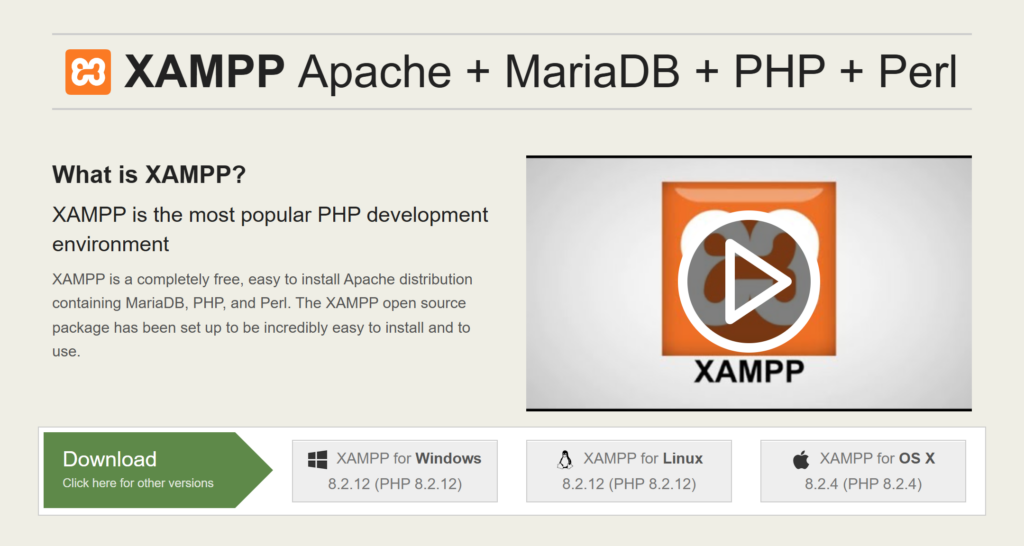
XAMPP is the oldest and most widely recognised tool on this list. It has been around for over two decades and remains a go-to choice for developers who want a free, open-source local server stack with no strings attached. The name is an acronym: the X stands for cross-platform, A for Apache, M for MariaDB, P for PHP, and the final P for Perl. XAMPP is a completely free, easy-to-install Apache distribution and its open-source package has been set up to be incredibly easy to install and to use. [1]
What XAMPP Actually Is
It’s important to understand what XAMPP is and isn’t. It’s a server stack — meaning it installs Apache, MariaDB, PHP, and Perl on your computer and gives you a local web server environment. What XAMPP does is set up a software stack on your computer, but it doesn’t help you install WordPress. [2] That distinction matters. Unlike Local, which installs and configures WordPress for you automatically, XAMPP simply creates the environment in which WordPress can run. You still have to set WordPress up yourself.
XAMPP comes in two flavours: regular XAMPP and XAMPP-VM. The former installs the software in a directory on your computer, whereas the latter sets everything up on a Linux Virtual Machine. The regular version is available for Windows, Linux-based systems, and macOS. XAMPP-VM, on the other hand, is available only for macOS. [2]
Installing WordPress on XAMPP
The process of getting WordPress running on XAMPP is more involved than with dedicated tools, but it’s a valuable exercise for understanding how WordPress actually works under the hood. In broad terms, the steps are:
- Download and run the XAMPP installer
- Launch the XAMPP Control Panel and start the Apache and MySQL services
- Create a new database using phpMyAdmin (accessible via your browser at
localhost/phpmyadmin) - Download WordPress, unzip it, and place the files in XAMPP’s
htdocsfolder - Navigate to
localhost/your-site-namein your browser and run through the WordPress installation wizard
This process gives you full control over every step but requires more technical involvement compared to tools like Local. [3] If you’d rather skip the manual steps, there’s also an option to use Bitnami for XAMPP — a one-click installer that handles the WordPress setup for you, though it’s less flexible than doing it manually.
The Control Panel
Once everything is running, XAMPP is managed through its Control Panel — a straightforward dashboard that lets you start and stop individual services. As a developer, you can start and stop your Apache server at any time with a couple of clicks, map it to different ports, and access detailed logs. [2] It’s not a pretty interface by modern standards, but it’s functional and transparent. You always know exactly what’s running and what isn’t.
Managing Multiple Sites
Running a single WordPress site in XAMPP is manageable. Running several simultaneously is where things get more complicated. Each site needs its own folder in htdocs and its own database, and if you want to use proper local domain names (like mysite.local instead of localhost/mysite), you’ll need to manually edit your system’s hosts file and configure Apache virtual hosts. Things get a bit complicated if you want to use XAMPP to run more than a single WordPress website simultaneously — it’s probably nothing you can’t handle, but it’s more work than using a tool designed with WordPress in mind. [2]
phpMyAdmin
One area where XAMPP genuinely shines is database management. XAMPP comes with phpMyAdmin, which makes it easy to manage your MySQL databases [4] — creating, importing, exporting, and browsing them directly from your browser. For developers who regularly work with databases, phpMyAdmin is a familiar and capable tool. That said, tools like Local also include database management features, so this is less of a differentiator than it used to be.
PHP Version Management
XAMPP releases separate installer packages for different PHP versions, so you can choose which version to install upfront. XAMPP provides the option to choose from multiple versions, depending on which PHP release you want to use. [2] However, switching between PHP versions after installation isn’t as seamless as it is in Local or MAMP PRO — typically it means downloading a different version of XAMPP or manually swapping PHP binaries. For most solo developers working on one or two projects, this isn’t a big issue. For agencies juggling clients on different server configurations, it can become frustrating.
Security Considerations
One thing worth flagging is that XAMPP is configured out of the box for ease of development, not security. The default installation has no passwords set on certain services and is not intended to be exposed to the internet. This is fine for a local-only environment, but it’s worth being aware of — particularly if you’re on a laptop that connects to public networks. XAMPP does include SSL support out of the box, which puts it ahead of some alternatives in this regard, but you’ll need to configure it manually.
Community and Longevity
XAMPP has been around a long time and has an active community of users with extensive community support available through forums, tutorials, and documentation. Its long-standing presence in the development community ensures that most issues you encounter will have documented solutions. [5] If you run into a problem with XAMPP, the answer almost certainly exists somewhere online.
Versatility Beyond WordPress
One of XAMPP’s genuine advantages over WordPress-specific tools is that it’s not limited to WordPress. XAMPP’s strength lies in its versatility — it supports various web development stacks beyond WordPress, including projects built with PHP, Perl, and other languages, making it ideal for developers who work on diverse projects and need a more adaptable development environment. [6] If you occasionally work on non-WordPress PHP projects, XAMPP handles those just as well.
What to Watch Out For
XAMPP is powerful and free, but it does have real drawbacks worth considering. The interface is dated and less intuitive than modern alternatives. Setting up multiple sites requires manual configuration. Switching PHP versions mid-project is cumbersome. And there’s no built-in WordPress-specific tooling — no Blueprints, no Live Links, no one-click admin login. Not only can the initial installation and setup be challenging, but the tool also lacks an intuitive interface. [7] For developers coming from Local or a similar tool, XAMPP can feel like a step back in terms of day-to-day workflow.
Who It’s Best For
XAMPP rewards developers who want to understand what’s happening under the hood and who value flexibility over convenience. It’s a great learning tool — working through the manual WordPress installation teaches you things about how WordPress, Apache, and MySQL interact that you simply don’t learn when a GUI tool does everything for you. It’s also the right choice for developers who work across multiple technologies and don’t want to maintain separate environments for WordPress and other PHP projects.
Best for: Developers comfortable with manual configuration, those who work across multiple languages and frameworks beyond WordPress, or anyone who wants to learn the fundamentals of local server setup without cost.
MAMP
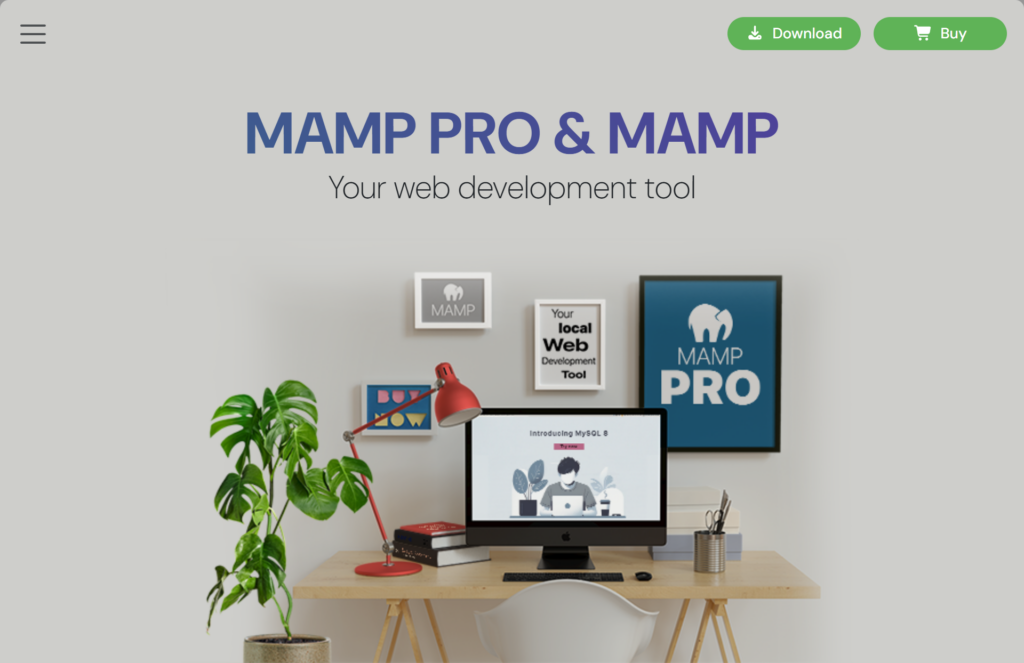
MAMP is a free, local server environment that can be installed under macOS and Windows with just a few clicks. It provides all the tools needed to run WordPress on a desktop PC for testing or development purposes. [8] The free version offers a bit less control than XAMPP, but it’s somewhat easier to manage. [2] The paid MAMP PRO tier unlocks significantly more: with MAMP PRO, you can set up local WordPress sites in seconds — one click creates a complete WordPress installation with a database. It also includes snapshot support, HTTPS support, custom hostnames, and the ability to choose between Apache or Nginx as the web server and set per-site PHP versions. [8]
Best for: Mac and Windows users who want a GUI-based environment with a smooth upgrade path to more advanced features.
VVV (Varying Vagrant Vagrants)
VVV is an open-source local development environment focused on WordPress, powered by Vagrant. It’s ideal for developing themes and plugins, as well as for contributing to WordPress core. [9] VVV requires recent versions of both Vagrant and VirtualBox. Vagrant is a tool for building and distributing development environments that works with virtualization software to provide a virtual machine sandboxed from your local environment. In addition to VirtualBox, VVV also supports Parallels, Hyper-V, VMware Fusion, and VMware Workstation, with experimental Docker support. [9]

VVV’s goals include an approachable development environment with a modern server configuration, a stable state of software, and excellent documentation. [9] It’s CLI-driven, which makes it more powerful but steeper in learning curve than GUI tools.
Best for: Experienced developers, WordPress core contributors, and teams who want a reproducible, version-controlled environment.
Local (by WP Engine)
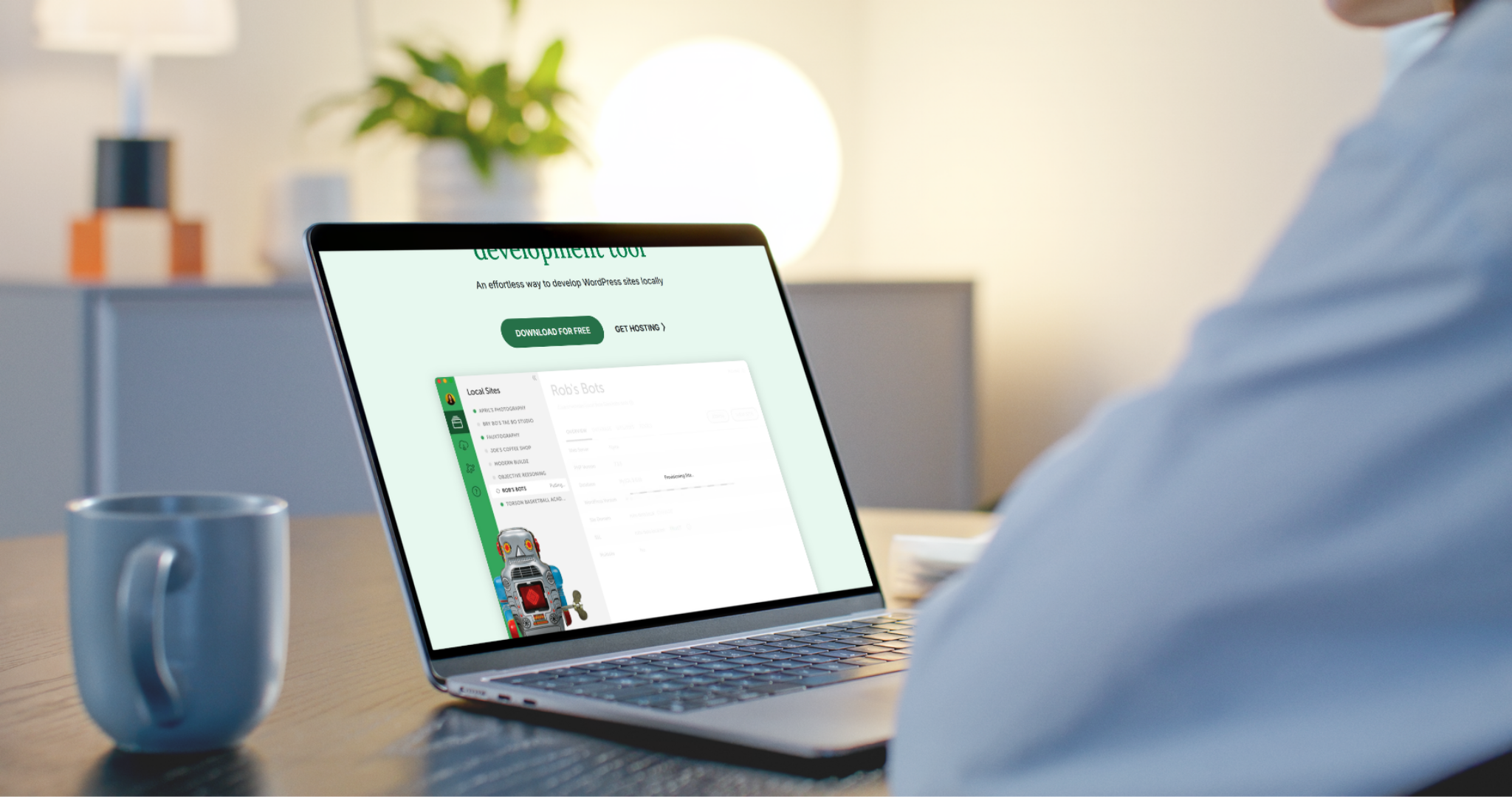
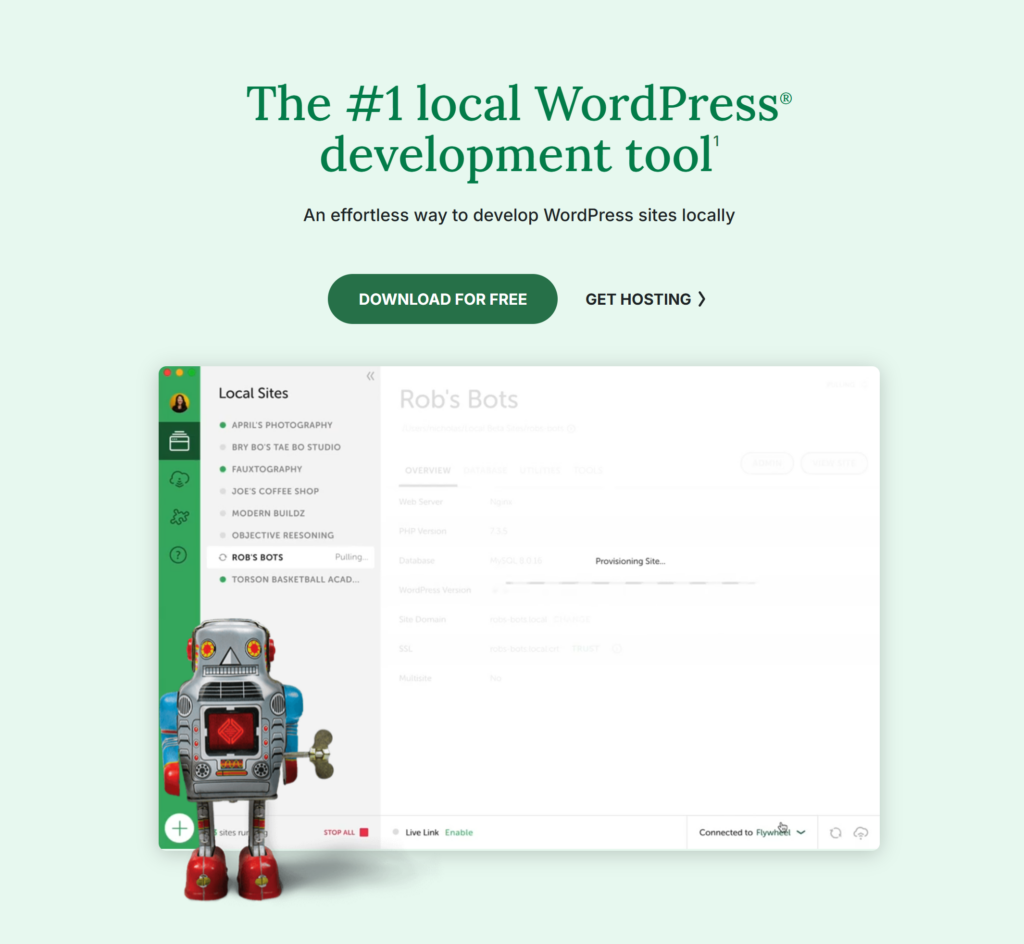
If you’re looking for the most polished, WordPress-focused local development experience available, Local is hard to beat. Trusted by over 2 million developers, it simplifies setting up WordPress sites with a user-friendly interface, eliminating the need for manual server configuration. [10] Where tools like XAMPP and MAMP require you to set up WordPress manually — creating databases, configuring config files, navigating phpMyAdmin — Local handles all of that for you automatically.
Getting Started
Creating a new site in Local takes about a minute. You give it a name, choose your environment (more on that below), set an admin username and password, and Local does the rest. Local automatically creates the WordPress installation complete with a database — and it automatically appends .local to your site name, so you always know at a glance whether you’re looking at your local or live version. [11] That small detail is more useful than it sounds when you’re juggling multiple projects.
Environment Control
One of Local’s strongest features is how easily you can customise the server environment for each individual site. You can hot-swap between NGINX or Apache, switch between PHP versions, and even try out the latest version of MySQL — all right from within the app, without restarting anything manually. [12] This matters because your live server probably isn’t running the same PHP version as your default local setup, and being able to match those environments prevents the classic “it works locally but breaks in production” headache.
Blueprints
If you regularly spin up WordPress sites with the same set of plugins, themes, or settings — say, a standard client starter setup — Blueprints will save you a significant amount of time. You can save any site as a Blueprint to reuse later; all files, databases, config files, and Local settings will be restored exactly as they were. [12] Think of it as a project template you can clone with a single click.
Live Links
Local includes a feature called Live Links that lets you share your locally running site with anyone over the internet — no deployment needed. Live Links provides secure, persistent URLs with longer timeouts and higher connection limits, so your clients and coworkers can review work on their own time. [12] This is particularly useful for getting client feedback on a design or testing your site on a real mobile device without uploading anything to a server.
Developer Tools
Local isn’t just for beginners — it has plenty of depth for experienced developers too. It includes:
- WP-CLI — one-click access to the command line for each individual site, with WP-CLI pre-installed so you can run WordPress commands immediately
- Mailpit — intercepts any outgoing email from PHP so you can view and debug emails without actually sending them, even while working offline
- Xdebug — built-in support for step debugging, which integrates with editors like VS Code and PhpStorm
- Log access — PHP, NGINX, Apache, and MySQL logs are all exposed directly in the app
- Instant Reload, a Link Checker, and an Image Optimizer are also available as pre-launch tools [12]
Cloud Backups and Deployment
Local lets you save projects directly to any Dropbox or Google Drive account with a click, and retrieve your site backups at any time from any computer with Local installed. [12] On the deployment side, if you host with WP Engine or Flywheel, Local integrates directly — you can push and pull sites between your local environment and your live or staging server without leaving the app. For other hosts, Local generates a migration-plugin-compatible export that works with most popular hosting providers.
WordPress Multisite
Local supports WordPress Multisite, including both subdomain and subdirectory installations, with one-click syncing of subdomains to your hosts file. [12] This is a rare feature among local development tools and makes Local one of the few beginner-friendly options that can handle more complex WordPress configurations.
What to Watch Out For
Local is excellent, but it’s worth being aware of a couple of limitations. First, it’s built exclusively for WordPress — if you need to run other PHP applications or frameworks locally, you’ll need a different tool. Second, because each site runs in its own isolated container, accessing files from outside that container requires using Local’s Volume Add-on. And third, while Local is free, some of its more advanced features — like Live Links with higher connection limits — are tied to having a Local account.
Who It’s Best For
Local is the right choice for the vast majority of WordPress developers, from complete beginners to seasoned professionals. Beginners will appreciate that it removes every friction point from getting WordPress running locally. Experienced developers will value the environment controls, Blueprints, and developer tooling. And agencies or freelancers managing multiple client sites will find the Blueprints and cloud backup features genuinely time-saving.
Best for: Anyone working with WordPress who wants the fastest, most frictionless local setup — especially freelancers, agencies, and developers who regularly build new sites from scratch.
Docker
Docker is a different beast compared to the other tools on this list — and that’s precisely what makes it worth knowing about. Docker is an open-source platform that automates the deployment of applications inside lightweight, portable containers. These containers package up an application and all its dependencies, ensuring that it runs consistently across different environments. [13]

Traditional local development setups can lead to inconsistencies and the infamous “it works on my machine” problem. With Docker, your entire environment is defined as code, ensuring that every team member works with the same setup and eliminating environment-related discrepancies. [14]
For WordPress specifically, the typical Docker setup uses Docker Compose — a configuration file where you define separate containers for WordPress, MySQL, and any other services you need. Docker offers a clean, consistent, and isolated development environment that can be spun up in minutes, and you can remove everything with a single command when you’re done. [15]
The trade-off is complexity. Using Docker for your local development environment is a more involved process. It’s not designed specifically for WordPress or PHP development and thus has more things that need to be configured. [16] You’ll need to be comfortable with the command line and YAML configuration files. But once your setup is in place, it’s remarkably powerful — you can configure containers to meet your particular needs, and Docker makes it easy to move WordPress sites from one platform to another, since the services inside a container are always identical regardless of whether it runs on Mac, Linux, or Windows. [17]
Best for: Experienced developers, development teams who need consistent shared environments, and anyone whose workflow already involves CI/CD pipelines or containerization.
| Tool | Platform | WordPress-specific | Skill level | Cost |
|---|---|---|---|---|
| XAMPP | Win / Mac / Linux | No | Intermediate | Free |
| MAMP | Win / Mac | No | Beginner – Intermediate | Free / Paid Pro |
| VVV | Win / Mac / Linux | Yes | Intermediate | Free |
| Local | Win / Mac / Linux | Yes | Beginner – Professional | Free |
| Docker | Win / Mac / Linux | No | Intermediate | Free / Paid Pro |
References
- XAMPP installers and downloads for Apache Friends. (n.d.). Retrieved April 22, 2026, from https://www.apachefriends.org/
- Hughes, J. (2025, January 24). 5 best local WordPress development tools compared for 2025. WPShout. https://wpshout.com/local-wordpress-development-tools/
- Schäferhoff, N. (2024, September 22). Local vs XAMPP: Which Should You Use for Local Development? Torque. https://torquemag.io/2024/09/local-vs-xampp/
- Sharma, A. (2026, April 14). 5 Best Local WordPress Development Environments [Easy Setup]. Nexter. https://nexterwp.com/blog/best-local-wordpress-development-environments/
- Davey, M. (2024, March 28). The Best Local WordPress Development Environment: XAMPP vs MAMP vs Laragon vs Local. Delicious Brains. https://deliciousbrains.com/xampp-mamp-local-dev/
- Moran, S. (n.d.). Deciding between Local and XAMPP for your local development environment – MainWP WordPress Management. MainWP WordPress Management. https://mainwp.com/deciding-between-local-and-xampp-for-your-local-development-environment/
- Tucakov, J. S. (2025, October 30). The best local WordPress development Environments in 2025. Amelia WordPress Booking Plugin. https://wpamelia.com/best-local-wordpress-development-environment/
- GmbH, M. (n.d.). MAMP & MAMP PRO – your local web development solution for PHP and WordPress development. https://www.mamp.info/en/windows/
- VVV. (n.d.). VVV. https://varyingvagrantvagrants.org/
- The ultimate guide to the best WordPress development tools in 2024. (2025, October 9). WP-Coder.net. https://wp-coder.net/blog/best-wordpress-development-tools/
- Storey, D. (2025, July 23). Local WordPress Development: From MAMP to Local by Flywheel. The Duane Storey. https://duanestorey.com/posts/local-wordpress-development-from-mamp-to-local-by-flywheel
- Features – local. (n.d.). Local. https://localwp.com/features/
- Vazirani, R. (2025, March 31). Set up local WordPress development using docker. WPWeb Infotech. https://wpwebinfotech.com/blog/local-wordpress-development-using-docker/
- Mikhalev, V. (2024, November 5). How to dockerize WordPress | Docker. Docker. https://www.docker.com/blog/how-to-dockerize-wordpress/
- Adhikari, P. (2025, May 7). WordPress Development with Docker: A Complete Setup Guide. DEV Community. https://dev.to/caffinecoder54/wordpress-development-with-docker-a-complete-setup-guide-24cb
- WordPress.com. (2025, March 20). Setting up your local development environment for WordPress. WordPress.com News. https://wordpress.com/blog/2022/11/14/setting-up-your-local-development-environment-for-wordpress/
- Koch, Jan. “Liquid Web.” Liquid Web, (2026, Jan 30). Using Docker for WordPress local development. www.liquidweb.com/wordpress/local/docker/. Accessed 23 Apr. 2026.