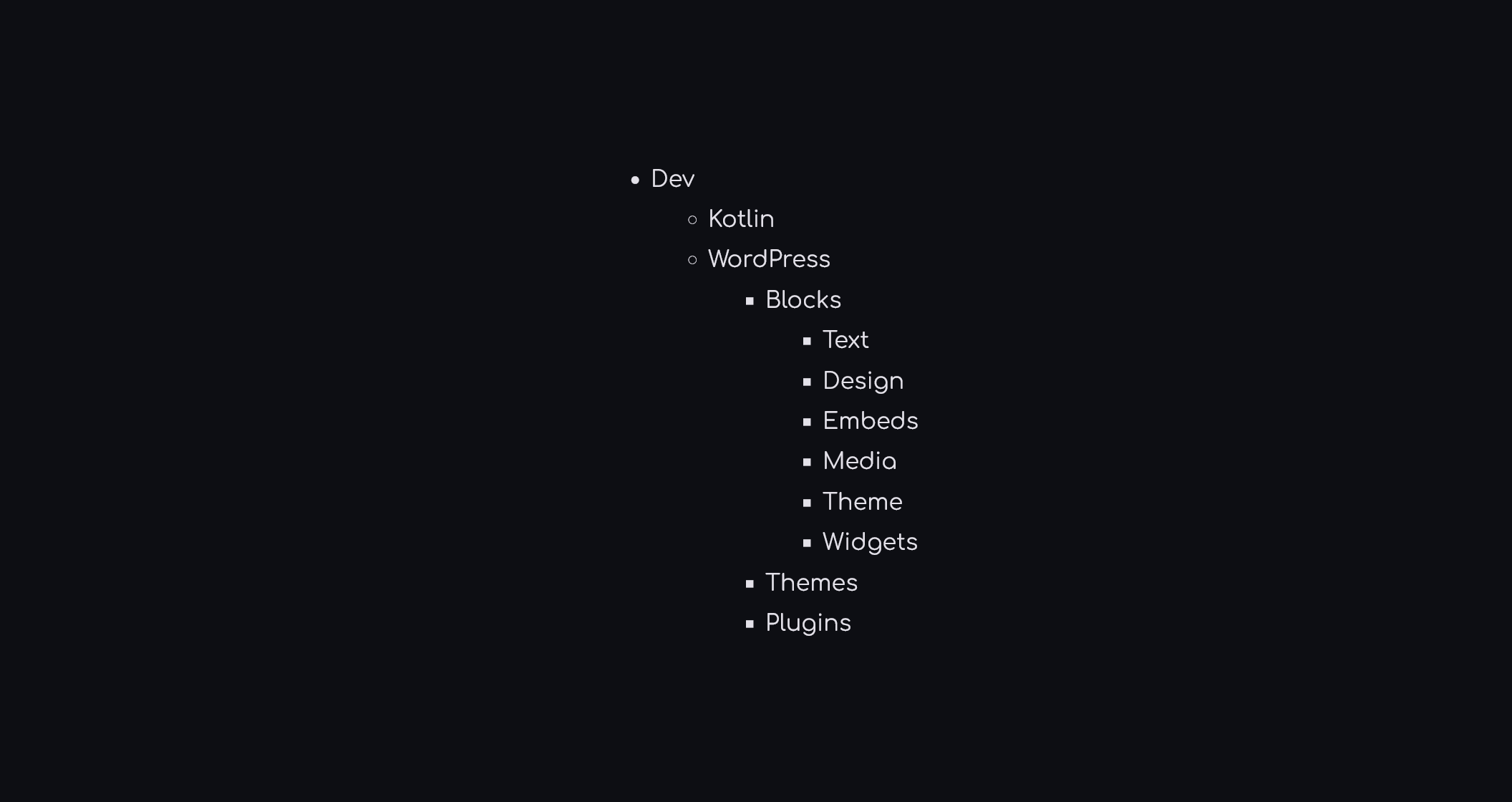

This article walks through the exact approach used in the LUMO-Display-KMP project, whose structure is shown below.
LUMO-Display-KMP/
├── controller/
│   ├── androidApp/
│   ├── desktopApp/
│   ├── iosApp/
│   └── shared/
├── core/
├── data/
├── screen/
│   ├── androidApp/
│   ├── desktopApp/
│   ├── iosApp/
│   └── shared/
├── iOSWorkspace/
│   └── workspace.xcworkspace/
│   └── contents.xcworkspacedata
├── build.gradle.kts
├── settings.gradle.kts
└── gradle.properties
Create Your First KMP Project and Group Its Targets into a Folder
Start with the standard KMP project wizard in Android Studio (or the KMP web wizard at kmp.jetbrains.com). By default it places androidApp, iosApp, and shared at the root. The first thing to do is move them into a named sub-folder that reflects the product area — in this project that folder is controller.
Physical layout
Move the generated modules so your directory tree looks like this:
controller/
├── androidApp/
├── desktopApp/
├── iosApp/
└── shared/
settings.gradle.kts — include every module with its new path
// settings.gradle.kts (root)
rootProject.name = "LUMO-Display-KMP"
include(":controller:androidApp")
include(":controller:desktopApp")
include(":controller:iosApp")
include(":controller:shared")
Each include path mirrors the folder hierarchy. Gradle treats the colon as a path separator, so :controller:shared resolves to controller/shared/build.gradle.kts.
controller/shared — a normal KMP library module
import org.jetbrains.kotlin.gradle.dsl.JvmTarget

plugins {
    alias(libs.plugins.kotlinMultiplatform)
    alias(libs.plugins.androidMultiplatformLibrary)
    alias(libs.plugins.composeMultiplatform)
    alias(libs.plugins.composeCompiler)
}

kotlin {
    listOf(
        iosArm64(),
        iosSimulatorArm64()
    ).forEach { iosTarget ->
        iosTarget.binaries.framework {
            baseName = "Shared"
            isStatic = true
        }
    }

    jvm()

    android {
        namespace = "com.lumopos.display.controller.shared"
        compileSdk = libs.versions.android.compileSdk.get().toInt()
        minSdk = libs.versions.android.minSdk.get().toInt()
        compilerOptions {
            jvmTarget = JvmTarget.JVM_11
        }
        androidResources {
            enable = true
        }
        withHostTest {
            isIncludeAndroidResources = true
        }
    }
    sourceSets {
        androidMain.dependencies {
            implementation(libs.compose.uiToolingPreview)
        }
        commonMain.dependencies {
            implementation(libs.compose.runtime)
            implementation(libs.compose.foundation)
            implementation(libs.compose.material3)
            implementation(libs.compose.ui)
            implementation(libs.compose.components.resources)
            implementation(libs.compose.uiToolingPreview)
            implementation(libs.androidx.lifecycle.viewmodelCompose)
            implementation(libs.androidx.lifecycle.runtimeCompose)
            implementation(projects.core)
        }
        commonTest.dependencies {
            implementation(libs.kotlin.test)
        }
    }
}

dependencies {
    androidRuntimeClasspath(libs.compose.uiTooling)
}
The iOS target is consumed via its generated framework (more on that later).
Update the dependency accessor in androidApp and desktopApp
This is a detail that is easy to miss. When the modules lived at the root, both androidApp and desktopApp referenced the shared library using the default type-safe project accessor:
// before moving into a folder
implementation(projects.shared)
After you nest everything under controller/, Gradle regenerates the accessor to reflect the new path. You must update every build.gradle.kts inside the app modules:
// after moving into controller/
implementation(projects.controller.shared)
The same rule applies to the screen/ group — its androidApp and desktopApp must reference projects.screen.shared. If you skip this step the build will fail with an unresolved reference error that can look confusing at first glance.
Add a Second Application Group from a Separate Project
If a second app (here: the screen / display app) started life as its own KMP project, bring it in by copying its modules into the monorepo root under a new folder — screen/ — and registering them in the same settings.gradle.kts:
// settings.gradle.kts (root, expanded)
include(":controller:androidApp")
include(":controller:desktopApp")
include(":controller:iosApp")
include(":controller:shared")
include(":screen:androidApp")
include(":screen:desktopApp")
include(":screen:iosApp")
include(":screen:shared")
screen/shared is structured identically to controller/shared — it is a KMP library module that targets Android, desktop, and iOS, but it encapsulates UI logic and state specific to the display side of the product.
Tip: keep the
applicationId(Android) and bundle identifier (iOS) of each app group completely distinct from the start. Mixing them later is painful.
Extract Truly Shared Logic into a core Module
Once two shared modules exist you will inevitably find logic that belongs to neither of them — network clients, domain models, persistence helpers, utility functions. Rather than duplicating this between controller/shared and screen/shared, extract it into a top-level KMP module: core.
Module structure
core/
├── build.gradle.kts
└── src/
    ├── commonMain/kotlin/
    ├── androidMain/kotlin/
    ├── iosMain/kotlin/
    └── desktopMain/kotlin/
core/build.gradle.kts
plugins {
    alias(libs.plugins.kotlinMultiplatform)
    alias(libs.plugins.androidMultiplatformLibrary)
}

kotlin {
    listOf( iosArm64(), iosSimulatorArm64() ).forEach {
        iosTarget -> iosTarget.binaries.framework {
            baseName = "Shared" isStatic = true
        }
    }

    jvm()

    sourceSets {
        commonMain.dependencies {
            // Ktor, SQLDelight, kotlinx.serialization, etc.
        }
    }
}
Wire core into both shared modules
// controller/shared/build.gradle.kts
kotlin {
    sourceSets {
        commonMain.dependencies {
            implementation(<em>projects</em>.<em>core</em>)
        }
    }
}
// screen/shared/build.gradle.kts
kotlin {
sourceSets {
commonMain.dependencies {
implementation(<em>projects</em>.<em>core</em>)
}
}
}Register core in settings.gradle.kts:
include(":core")The dependency graph is deliberately one-directional: core knows nothing about either app group; both shared modules depend on core; the application modules depend only on their own shared.

You can also add a data module (visible in the project tree) at the same level as core if you want to separate data-layer concerns — repositories, DTOs, local database schema — from pure domain logic.
Set Up the iOS Workspace for Multiple Frameworks
This is the step most KMP tutorials skip. When you have a single shared module there is one generated .framework; Xcode handles it without complaint. With two shared modules producing two separate frameworks — ControllerShared.framework and ScreenShared.framework — you need an Xcode Workspace to manage them together.
Why a workspace is required
An Xcode Workspace (.xcworkspace) groups multiple Xcode projects or packages into a single workspace. Each iOS app (controller/iosApp and screen/iosApp) has its own .xcodeproj, and both reference framework outputs that are built by Gradle. A workspace lets you open everything in one Xcode window and share a single scheme for building.
Create the workspace
- In Xcode choose File → New → Workspace and save it to
iOSWorkspace/workspace.xcworkspace. - In the workspace navigator, click + and add each iOS project:
controller/iosApp/iosApp.xcodeprojscreen/iosApp/iosApp.xcodeproj
Example of contents.xcworkspacedata
The workspace file is plain XML. After adding both projects it looks like this:
<?xml version="1.0" encoding="UTF-8"?>
<Workspace
    version = "1.0">
    <FileRef
        location = "absolute:/Users/lumoloki/Documents/GitHub/LUMO-Display-KMP/controller/iosApp/controllerIosApp.xcodeproj">
    </FileRef>
    <FileRef
        location = "container:../screen/iosApp/screenIosApp.xcodeproj">
    </FileRef>
</Workspace>
Note that the .xcodeproj names here — controllerIosApp.xcodeproj and screenIosApp.xcodeproj — were renamed from the default iosApp.xcodeproj so that both projects can be told apart at a glance inside Xcode. It is a good habit to do this before adding them to the workspace.
Build phase
Each iOS Xcode project has a Run Script build phase that calls the corresponding Gradle task so the framework is always rebuilt before the Swift compilation step:
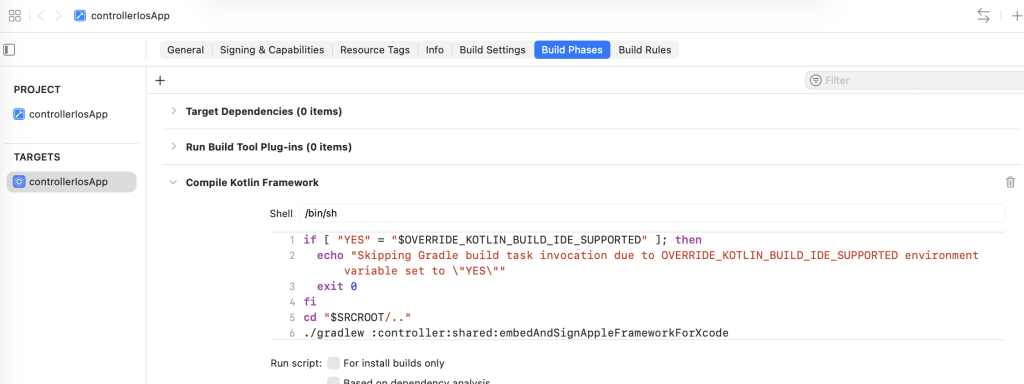
controller/iosApp — Run Script build phase
./gradlew :controller:shared:embedAndSignAppleFrameworkForXcode
screen/iosApp — Run Script build phase
./gradlew :screen:shared:embedAndSignAppleFrameworkForXcode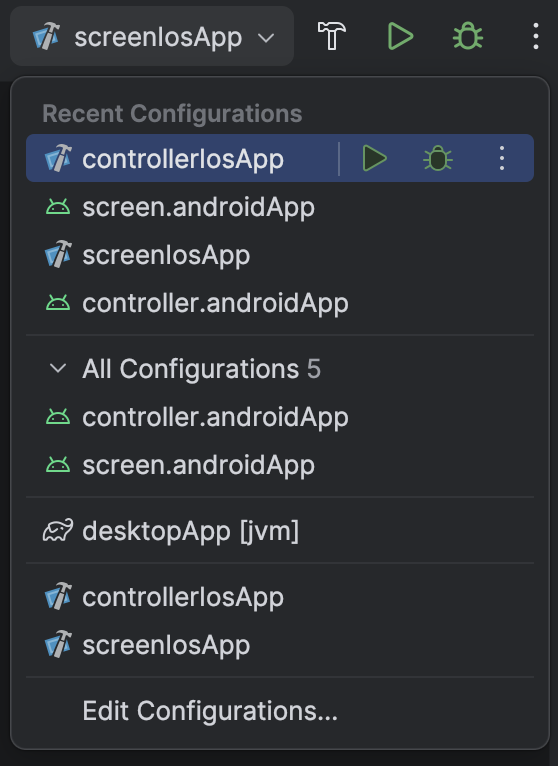
The structure described here scales further than two app groups. Need a third product? Add another folder alongside controller/ and screen/, register its modules in settings.gradle.kts, wire it to :core, and add its iOS project to the workspace — the pattern repeats without touching anything already in place.
The real payoff is not just code reuse. It is the discipline the structure enforces: core stays unaware of any product, each shared module stays unaware of the others, and the application modules never reach across group boundaries. That separation makes it straightforward to reason about what changes when a product requirement shifts, and to hand different app groups to different team members without stepping on each other’s work.